Business & Monetarisierung / Agency Skalierung
White-Labeling
Eigenes Branding
Business & Monetarisierung / Agency Skalierung
Eigenes Branding
Empfohlener Einstieg
HighLevel 14 Tage kostenlos testenLearn how to brand your GoHighLevel desktop web app with a custom domain. Setup guide, DNS tips, logo and terms integration for seamless whitelabeling.
All
Articles
Clear all
Popular Articles
Articles
Topics
Tickets

How to Set Up a Whitelabel Domain in the Agency Settings - YouTube
HighLevel
86.7K subscribers
How to Set Up a Whitelabel Domain in the Agency Settings
HighLevel
Search
Share
Copy link
Info
Shopping
If playback doesn't begin shortly, try restarting your device.
Videos you watch may be added to the TV's watch history and influence TV recommendations. To avoid this, cancel and sign in to YouTube on your computer.
Share
An error occurred while retrieving sharing information. Please try again later.
0:00
0:00 / 1:45
•Live
•
Give your clients a fully branded login experience by using a whitelabel domain for the HighLevel desktop web app. This guide explains requirements, setup steps, and troubleshooting. You’ll also learn how this differs from the API (branded links) domain so you can deploy a complete brand experience.
TABLE OF CONTENTS
A whitelabel domain is a subdomain you control (e.g., app. yourdomain. com) that provides a branded URL for the desktop login and app that isused alongside the standard HighLevel link (e.g., app. gohighlevel. com). After setup, users can sign in at your branded address while HighLevel hosts and secures the application.
By whitelabeling your desktop web app, your customers will be using your domain when logging in and using the app. For example, instead of "app. gohighlevel. com" they would use "app. myawesomedomain. com".
Note: Custom/Whitelabel Domain is the domain you own and your customers will use to log into the desktop app (e.g., app. yourdomain. com). HighLevel Default Domain is the temporary GoHighLevel–provided address (e.g., yourcompany. gohighlevel. com).
A clear understanding of benefits helps you decide whether this configuration should be prioritized in your onboarding checklist and client rollout.
Brand consistency: Presents your name, logo, and URL throughout the login and app experience.
Trust & professionalism: Uses your domain to reassure clients they’re in the right place.
Simplified access: Gives users a memorable URL (e.g., app. yourdomain. com) for sign-in.
Seamless SSL: HighLevel issues HTTPS automatically once DNS is correctly pointed.
Separation of concerns: Keeps your login/app domain distinct from marketing sites and email sending domains.
Completing the steps in order ensures DNS and SSL finalize quickly and the login portal loads at your branded URL.
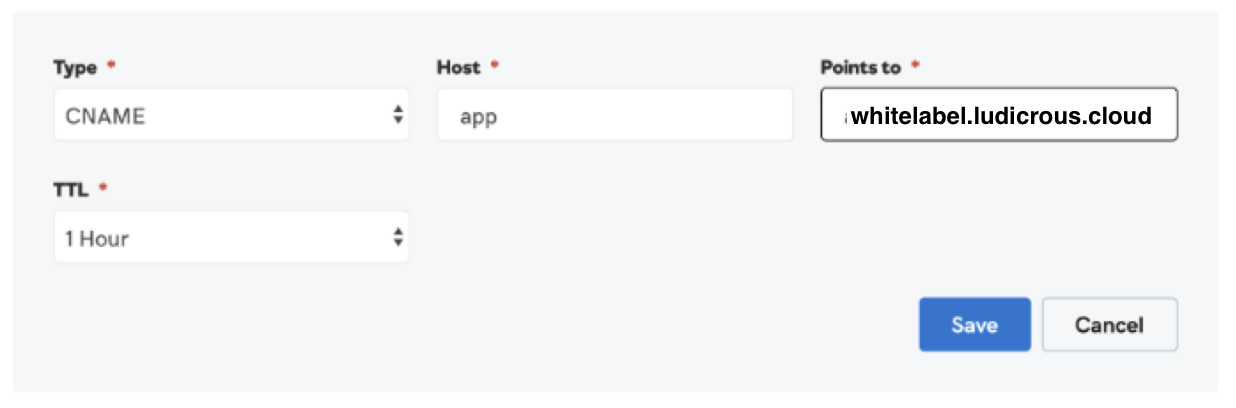
Host/name: the subdomain you want to use (for example, app meaning app. myawesomedomain. com).
Value/target: whitelabel. ludicrous. cloud.
TTL: Leave default unless your provider requires a specific value.
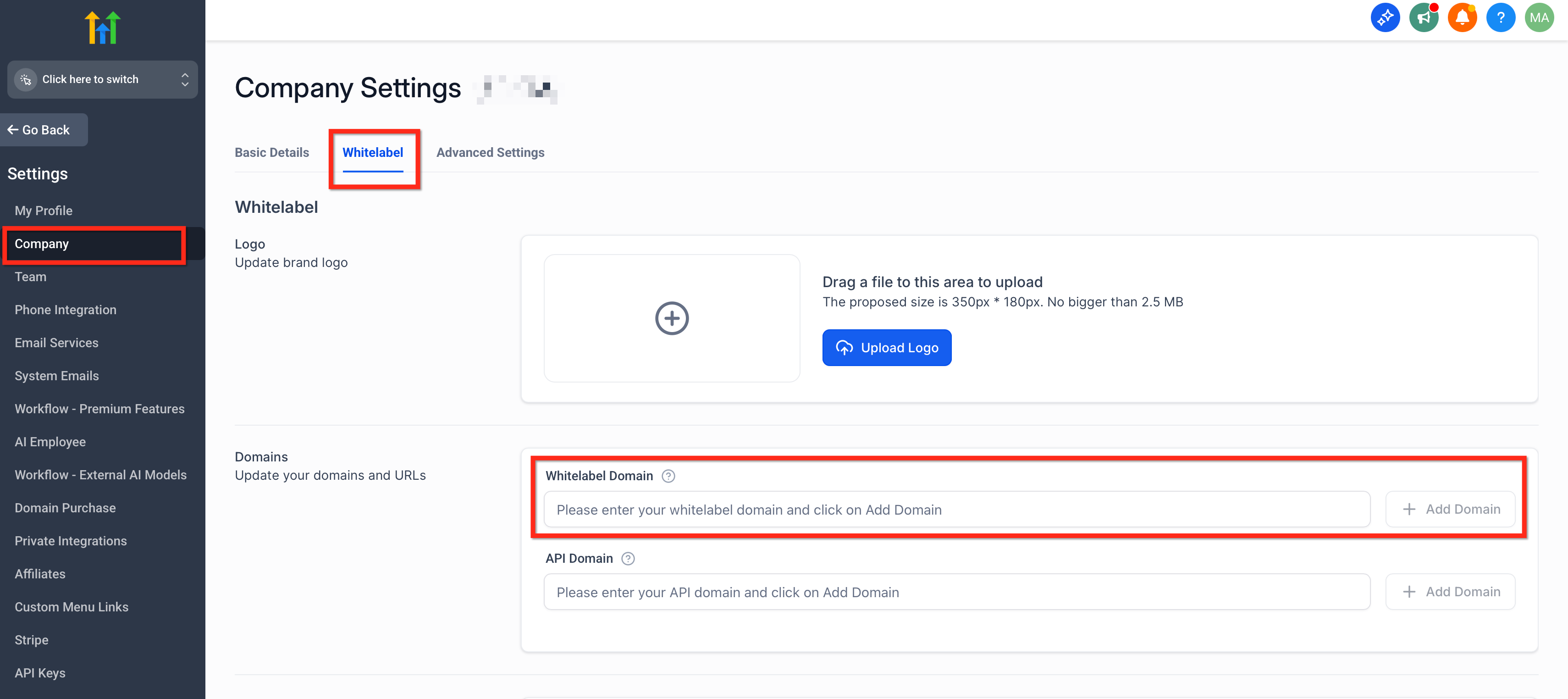
 2. Add the domain in HighLevel (Agency settings)
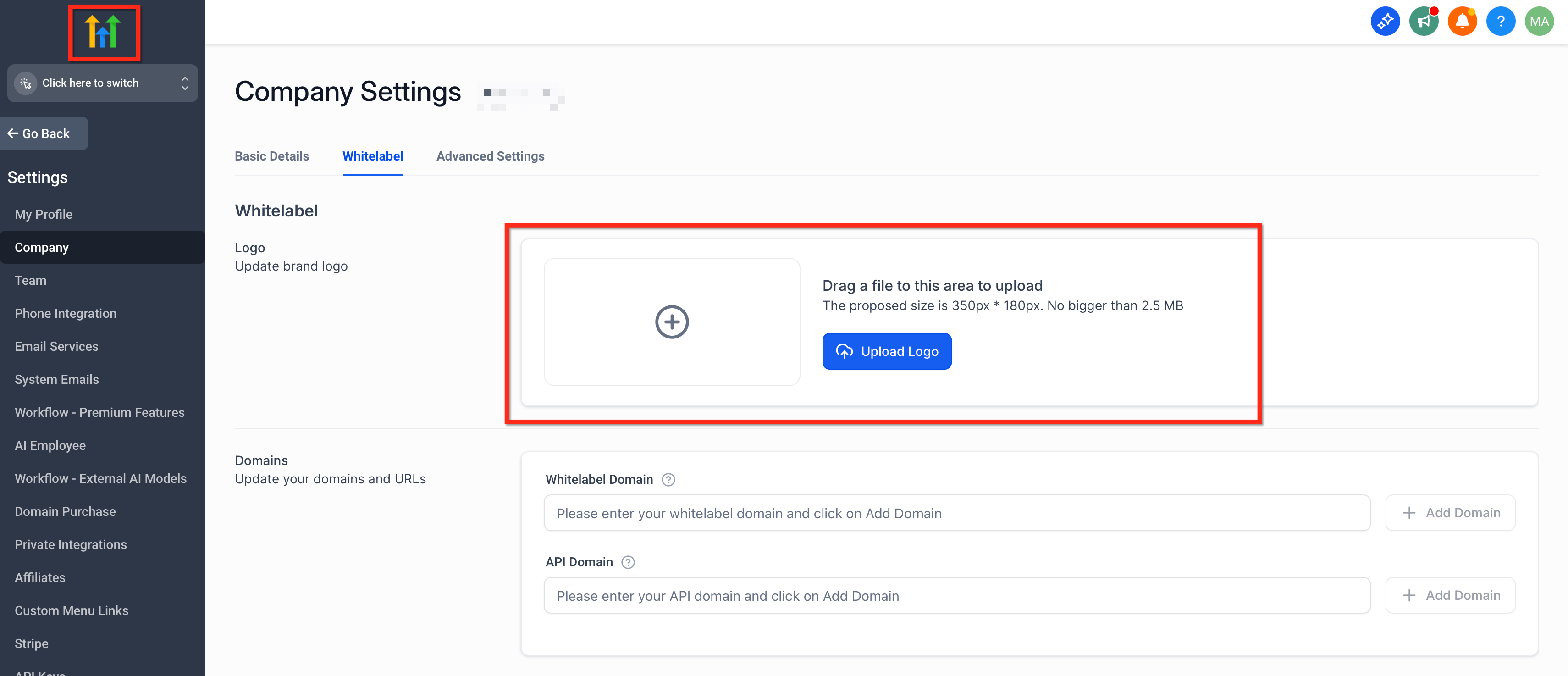
 3. Upload logo & add Terms & Conditions URL
 4. Verify propagation and SSL
Wait for DNS to propagate. Then open http://app.myawesomedomain.com to confirm the branded login page loads with your logo and legal links.
SSL/TLS is issued automatically once DNS points to the correct CNAME.
NOTE: If you previously set up your white-label domain and you want to update it to run on whitelabel. ludicrous. cloud, you'll need to first delete the whitelabel domain field using the trash icon, then click Update Company to save, then re-enter your sub-domain into the Whitelabel Domain field and save again.
Whitelabel Domain: Powers your desktop login and app URL (for example, app. myawesomedomain. com).
API Domain (Branded Links): Powers system-generated links in emails/SMS (forms, surveys, calendars, trigger links, short links, review links). Configure at Agency and/or Sub-Account level to brand links your contacts click.
Tip: Set up both for a complete branded experience across login and links.
Troubleshooting Whitelabel domain issues often comes down to verifying DNS settings and ensuring SSL has been properly issued. Below are common issues and how to resolve them:
This means the browser or device is using outdated security protocols. HighLevel supports TLS 1.2 and 1.3 only. Update your browser and ensure there are no conflicting DNS records (e.g., both A and CNAME for the same subdomain), which can block SSL from provisioning.
Double-check that your subdomain is pointed to the correct CNAME: whitelabel. ludicrous. cloud. It may take up to 30 minutes for DNS changes to propagate globally.
This usually means your SSL certificate hasn’t been issued yet. Make sure your DNS is fully propagated and pointed only to a single CNAME. Once DNS is correct, SSL is issued automatically via Let's Encrypt.
Q: Can I use my root domain (apex) for the whitelabel login?
A: Use a subdomain (for example, app. yourdomain. com) via CNAME to point to the HighLevel target.
Q: How long does SSL take to issue?
A: Once DNS is correct, SSL is issued automatically. Allow time for DNS to propagate globally, then retest.
Q: What’s the difference between the Whitelabel Domain and the API Domain?
A: The whitelabel domain brands the login/app URL. The API domain brands system-generated links used in emails/SMS (forms, surveys, calendars, trigger links, etc.).
Q: Do I need to upload my logo and legal links again for whitelabeling?
A: Yes. Upload your agency logo and add Terms & Conditions and Privacy Policy URLs in Agency Company Settings.
Q: We use Cloudflare. Do I keep the orange proxy on?
A: No. Set the whitelabel CNAME to DNS only so SSL can be issued properly.
Q: I updated my whitelabel subdomain—why does the old login still appear?
A: Clear the old value in the Whitelabel Domain field, click Update Company, then enter the new subdomain and save. Allow DNS/SSL to refresh, then retest.
Q: Which TLS versions are supported?
Q: Where do I configure the API domain for branded links?
A: At the Agency level in Settings → Company → API Domain and optionally at the Sub-Account level for client-specific branding.
No Yes
Thank you for your feedback
Thank you for your feedback
*
Need more information
Inaccurate/irrelevant content
Select at least one of the reasons
reCAPTCHA
I'm not a robot
reCAPTCHA
reCAPTCHA
Cancel
Send
We appreciate your effort and will try to fix the article
Zuletzt aktualisiert: 30. Jan. 2026 · Original